
How to Create a Clean Year-End Patient Statement in Dentrix
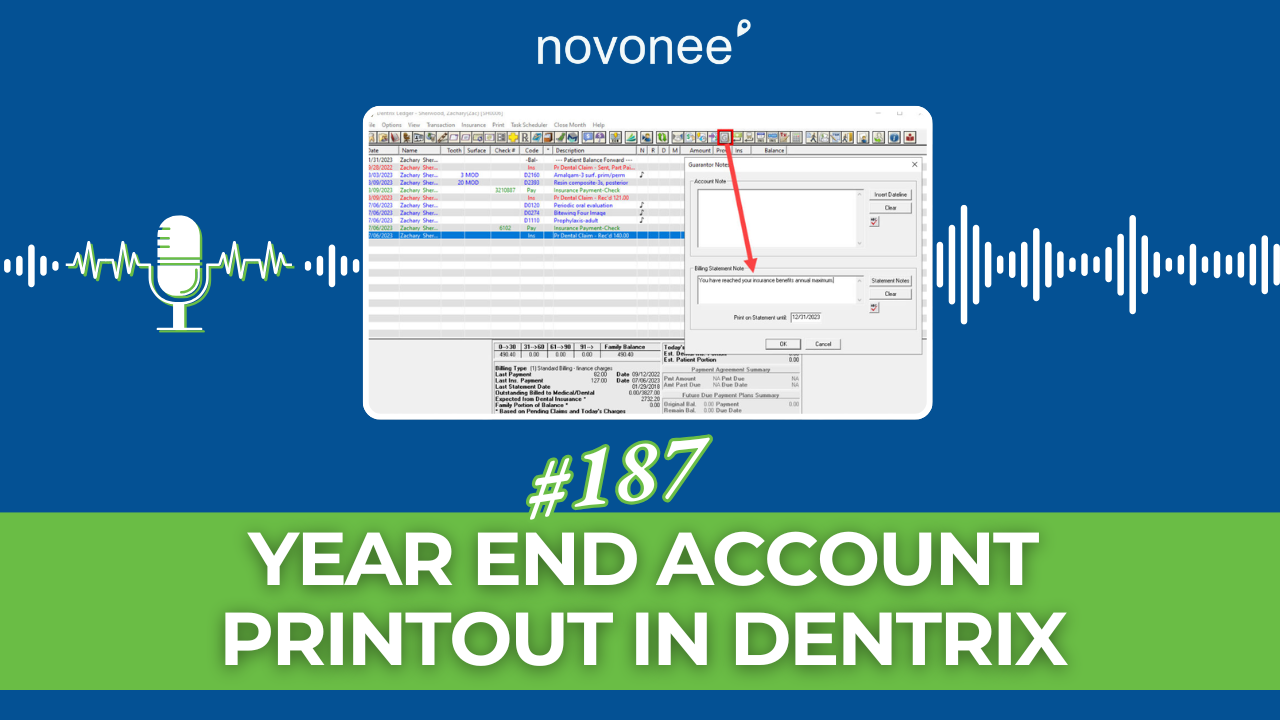
As we approach year-end, I start getting calls from offices saying, “Dayna, patients are asking for receipts and statements for taxes, FSA/HSA reimbursement, or just to see what they paid this year.” If you’ve ever chased down a messy ledger printout wondering how to give them a clear summary, you’re not alone.
Listen on Apple Podcasts:
Listen on Soundcloud:
In my experience, a billing statement is far better than printing the ledger. Dentrix ledgers can be confusing for patients because they show transfer balance adjustments, insurance allocations, and daily allocations that make sense to us but not to your average patient. Instead, a billing statement is clean, organized, and much easier to follow.
If you’ve wrestled with billing workflows before, you might appreciate the deeper guidance in “Why Sending Daily Billing Statements in Dentrix Will Save You a Ton of Headaches”, it explains why billing statements should be part of your everyday Dentrix routine and how they improve cash flow and patient clarity.
Why Billing Statements Over Ledger Prints
Billing statements give you options:
-
Print the entire family’s activity on one document
-
Include insurance payments and claims activity
-
Display procedure codes when needed
-
Provide clean financial summaries that patients can submit to FSA/HSA administrators
Instead of ledger chaos, statements look professional and are easier to explain.
There’s another great resource on my other blog titled “Print the right report for your patients tax needs” that walks through options for year-end dental payment summaries, including ADA codes and clean formats patients understand.
Step-by-Step: Generate a Year-End Billing Statement in Dentrix
Here’s how I recommend doing it:
-
Enable ADA Codes in Descriptions
Go to Preferences → Print Display and check “Use ADA codes in description.” This ensures ADA codes appear on the billing statement even though there’s no dedicated column for them. -
Open the Billing Statement Screen
Go to Reports → Billing → Billing Statements (the same place you run your daily statements). -
Adjust Print Parameters for Year-End
-
Change Balance Forward Date to January 1 of the current year
-
Choose the Guarantor (the person whose family needs the statement)
-
Set Minimum Balance to Bill to 0 so even zero-balance accounts print
-
Uncheck "Skip accounts with claim pending."
-
Uncheck If not billed since
These changes tell Dentrix to include all activity from January 1 through today and give you a complete year-end printout that patients can read.
-
-
Preview and Print or Save
The billing statement may be several pages, but it’s organized by date, procedures, payments, and insurance activity, exactly what patients need for taxes or FSA/HSA claims.
Alternatives: ADA-Coded Walkouts
If a patient only needs specific visit summaries for tax or reimbursement purposes, you can also generate ADA-coded walkout receipts. These are clean, visit-specific statements that include procedure codes, charges, and payments.
Using walkouts for year-end needs is another solid option; it gives patients exactly what insurers or administrators ask for.
Final Thought
Giving patients a clean, professional, year-end statement builds trust and avoids confusion. It also shows that your office has systems that care about the patient experience, even after they leave the chair.
If you want more help refining your Dentrix billing workflows, you’ll find practical guidance on the Novonee.com that can make statement generation and financial communication easier for your team.
Stay connected with news and updates!
Join our mailing list to receive the latest news and updates from our team.
Don't worry, your information will not be shared.
We hate SPAM. We will never sell your information, for any reason.