Mastering Dentrix Treatment Planning: How Nonverbal Communication Can Transform Your Workflow
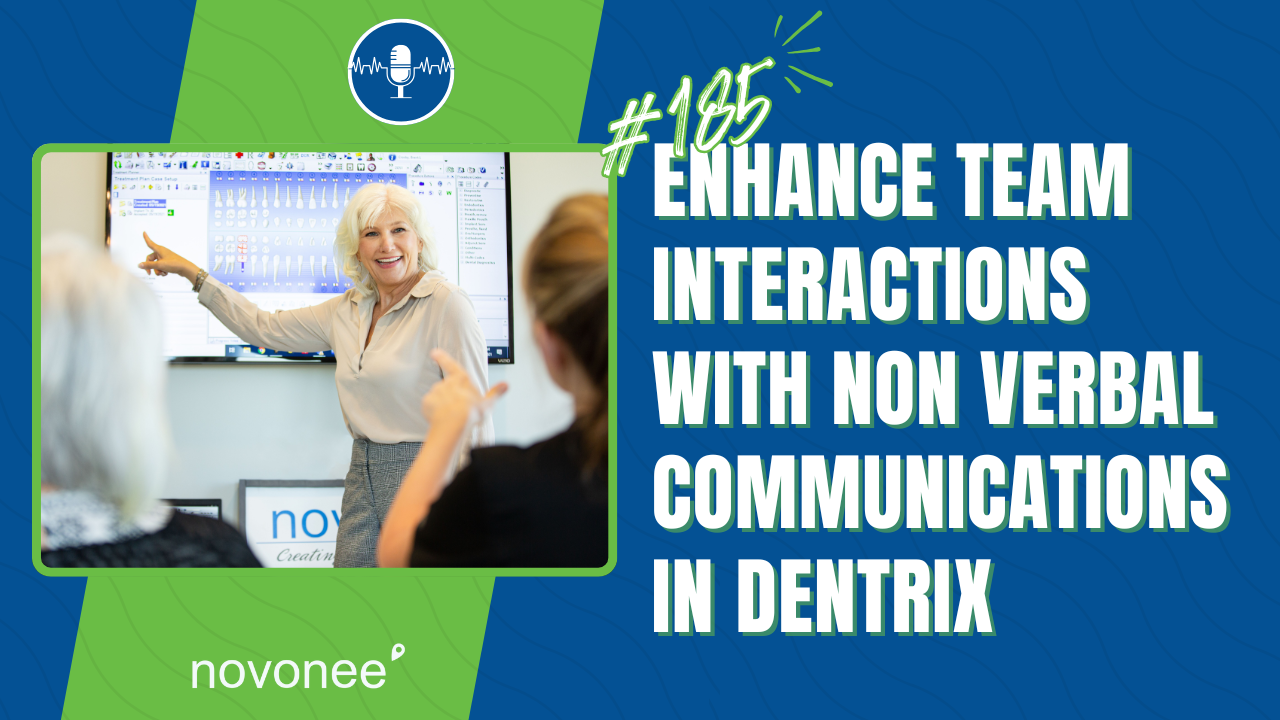
The treatment planning process in Dentrix is one of the most important and most misunderstood systems in a dental practice. It touches every corner of your workflow, from the clinical room to the front desk to the follow-up process. Any time I’m invited to do a full-day, full-team training, I always get the same question: “Why does my whole team need to be there? ”
Listen on Apple Podcasts:
Listen on Soundcloud:
Because treatment planning is a team sport.
If you’ve taken any of my courses inside the Novonee Membership, you already know that continuing care and treatment planning are two of the most complex processes we manage. They require accuracy, clarity, and communication between every single role. And in a busy, short-staffed world, we simply don’t have time to chase each other down the hall to ask, “Why does this patient need this crown? ”
That’s exactly why mastering nonverbal communication inside Dentrix isn’t optional; it’s essential.
Where Treatment Planning Really Begins
Treatment planning doesn’t start at the front desk. It starts in the clinical room the moment the doctor begins diagnosing.
The hygienist or assistant enters the doctor’s recommendations; maybe the patient needs a new crown on tooth #31 due to recurrent decay under a 10-year-old restoration, plus an occlusal filling on #30, plus scaling and root planing.
This is where the first layer of nonverbal communication comes in.
The Secret Weapon: Procedure Notes
When you double-click any procedure in the Dentrix treatment plan panel, there’s a small box for notes. Most teams ignore it. Big mistake.
That procedure note is one of the most powerful communication tools Dentrix gives you.
You can template diagnostic phrasing like “Existing crown, 10+ years old, ill-fitting, recurrent decay” so all you have to do is click. No typing. No guessing. No confusion.
Here’s why these matters:
- Your treatment coordinator sees exactly why treatment is needed without digging through clinical notes.
- The note can print directly onto the patient’s estimate, reinforcing the diagnosis when they’re discussing it with a spouse.
- It reduces back-and-forth questions and speeds up your handoffs.
This alone can increase case acceptance dramatically.
Rename Your Cases; Don’t Make Your Team Guess
When you’re presenting options, bridge vs. implant, for example, rename your cases clearly:
- Bridge Option – UR
- Implant Option – UR
When you do this, nobody has to ask, “Which case is which? ” The coordinator instantly knows what to present and what’s linked.
Small detail. Huge impact.
Use Case Status to Communicate Without Saying a Word
Most teams never use the case status history in Dentrix, but it’s a goldmine.
If you change a case status to proposed, printed, accepted, or rejected, Dentrix prompts you to add a note. This becomes a nonverbal communication thread attached directly to that case.
You can document:
- “Patient scheduled with OS for implant placement returns in 4 months for PA and restoration.”
- “Case rejected, patient declined night guard.”
- “Fees updated 2025.”
Now your coordinator doesn’t need to search the office journal, clinical notes, or old estimates to understand what’s going on. It’s all right there.
Make Follow-Up Easier With Expanded Progress Notes
When the treatment coordinator is working the Treatment Manager and a patient ask, “Why do I need that crown again? Nothing hurts,” your team should be able to answer instantly.
Because you templated your notes, all they have to do is expand the progress notes.
Then they can confidently guide the patient:
“The doctor noted that the existing crown isn’t sealing properly and there’s recurrent decay underneath. Waiting too long may lead to a fracture or a root canal.”
That’s how you support case acceptance without guesswork.
A Creative Trick: Use Custom Conditions to Flag Patient Notes
Since Dentrix doesn’t let you write text directly on the odontogram, I created a workaround that teams love: a custom “Clinical Notes” condition.
It paints a simple box around the tooth and houses a note. You can use it to highlight non-chartable details such as
- “Patient wears a night guard.”
- “Tissue grafted UR 2005.”
- “Completed ortho as a child.”
No more hunting through years of clinical notes.
Final Thoughts
When your team uses Dentrix the way it was designed, you eliminate confusion, speed up scheduling, and dramatically improve case acceptance. Nonverbal communication isn’t “extra”; it’s the backbone of a high-performing system.
If this was helpful and you want deeper training, you’ll find step-by-step tutorials, live coaching, and on-demand courses inside the Novonee Membership.
I can’t wait to keep helping you build your high-performing dental team.
Stay connected with news and updates!
Join our mailing list to receive the latest news and updates from our team.
Don't worry, your information will not be shared.
We hate SPAM. We will never sell your information, for any reason.